
Research-based review. Compiled from official documentation, pricing pages, published benchmarks and independent user reports. No paid placements. How we research
Affiliate disclosure: Some links in this article are affiliate links. We may earn a commission if you sign up at no extra cost to you.
Who This Is For This guide is for professionals — consultants, lawyers, healthcare workers, finance professionals, and anyone handling sensitive data — who want the power of AI without sending their information to a third-party cloud server.
What Is Ollama?
Ollama is a free, open-source tool that lets you download and run powerful AI language models directly on your own computer. Local models run without an internet connection or subscription, and your prompts stay on your machine. Ollama also offers optional cloud models (tags ending in :cloud) that run on Ollama’s servers; you can switch these off with local-only mode.
Think of it as having your own private version of ChatGPT running entirely on your laptop or desktop — completely offline if you choose.
If you’re new to AI assistants, start with our Claude AI review or ChatGPT review before diving into local models.
Why Run AI Locally?
There are three main reasons professionals choose local AI over cloud-based tools:
Privacy. Every prompt you type into ChatGPT, Claude, or Gemini is sent to a company’s servers. For lawyers, doctors, consultants, and finance professionals handling confidential information, that’s a significant concern. With Ollama, your data never leaves your machine.
Cost. Running local models is free after download. The real cost is hardware: bigger models need more RAM or a good GPU. Ollama’s optional cloud plans start at $20/month, no per-token charges.
Control. You choose which model to run, when to update it, and how to configure it. No feature changes pushed by a vendor, no service outages, no policy changes affecting what the AI will or won’t do.
What You Need Before Starting
Before installing Ollama, check that your computer meets these basic requirements:
- Operating system: macOS 14 Sonoma or later, Windows 10 (22H2) or 11, or Linux
- RAM: 8GB runs small models (up to about 7B parameters). 16GB is a practical minimum for today’s mid-size models such as gpt-oss:20b, and 32GB+ is needed for 27B-class models like Qwen3.8
- Storage: About 4GB for the app plus the models themselves. Small models are 1–3GB and mid-size models 14–20GB, so plan on 25GB+ free
- Internet: Only needed for the initial download — not required to run models afterward
Step 1 — Download and Install Ollama
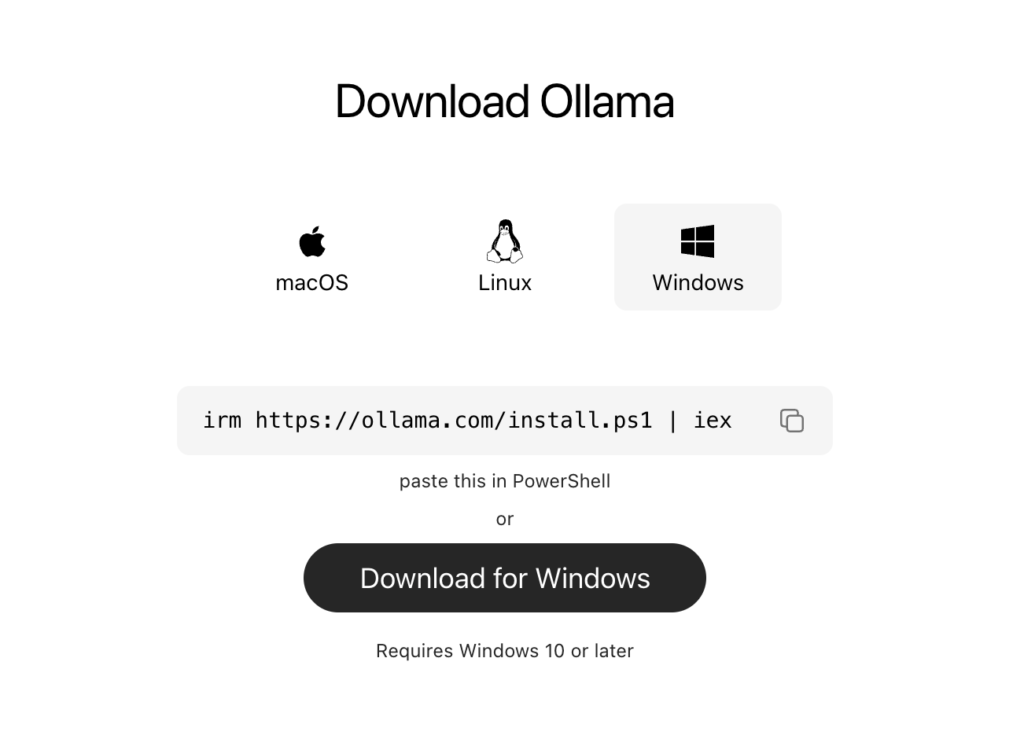
- Go to ollama.com
- Click the Download button for your operating system
- Run the installer — it takes about two minutes
- On Mac and Windows, Ollama installs a desktop app with its own chat window: pick a model and the app downloads it, then you can chat, drag in PDFs or text files, and attach images. It also runs in the background (menu bar or system tray) for other apps and the command line
Step 2 — Download Your First AI Model
Ollama works with dozens of open-source AI models. For professionals new to local AI, we recommend starting with one of these:
| Model | Size | Best For |
|---|---|---|
Qwen3.5 4B (qwen3.5:4b) | 3.4GB | Light and fast; good on 8GB machines |
Gemma 4 (gemma4, Google) | Varies by size | General use, with image input; several sizes |
gpt-oss 20B (gpt-oss:20b) | 14GB | OpenAI’s open-weight model; needs 16GB+ memory |
Qwen3.8 27B (qwen3.8) | 18GB | Strongest all-rounder for 32GB machines |
To download a model:
- Open your Terminal (Mac/Linux) or Command Prompt (Windows)
- Type:
ollama pull qwen3.5:4band press Enter - Wait for the download to complete — this takes a few minutes depending on your internet speed
Step 3 — Start Chatting
Once your model is downloaded, running it is simple:
- In Terminal or Command Prompt type:
ollama run qwen3.5:4b - Press Enter
- Type your prompt and press Enter
- The AI responds directly in your terminal
Example prompt to try: Summarize the key risks in a standard NDA agreement in plain English.
Step 4 — Add a Better Interface (Optional)
The terminal works but isn’t the most comfortable way to chat with an AI. Several free tools add a proper chat interface on top of Ollama:
Open WebUI — the most popular option. It gives you a ChatGPT-style interface running entirely on your own machine.
To install Open WebUI:
- Install Docker Desktop on your computer
- Open Terminal and paste this command:
docker run -d -p 3000:8080 --add-host=host.docker.internal:host-gateway -v open-webui:/app/backend/data --name open-webui --restart always ghcr.io/open-webui/open-webui:main- Open your browser and go to
http://localhost:3000 - You’ll see a full chat interface connected to your local Ollama models
Visual suggestion: Add a screenshot of the Open WebUI interface here — it looks similar to ChatGPT and will resonate strongly with readers.
If you would like to learn more, visit the Open WebUI GitHub page.
Practical Use Cases for Professionals
Common ways professionals use local models include:
Legal professionals: Drafting contract summaries, reviewing NDAs, and researching case precedents — all without sending client information to a third-party server.
Healthcare workers: Summarizing medical literature and drafting patient communications locally — keeping data on your own device (local processing reduces exposure but doesn’t by itself make a workflow compliant; check with your organization’s privacy or compliance lead).
Finance professionals: Analyzing financial documents and generating reports without exposing sensitive client data to cloud services.
Consultants: Drafting proposals, summarizing research, and preparing presentations on confidential client projects.
For cloud-based AI tools that work well for consultants, see our Best AI Tools for Consultants guide.
Limitations to Know
Ollama and local AI models are powerful but have real limitations compared to cloud tools:
Performance depends on your hardware. Larger, more capable models require more RAM and processing power. On older hardware, responses can be slow.
No built-in web access when fully offline. Local models only know what was in their training data. Ollama does offer an optional web search feature through a free Ollama account, but it sends queries to Ollama’s servers, so it isn’t private in the same way. For current information, cloud tools like Perplexity are still needed.
Basic use no longer needs the Terminal: the desktop app handles downloads and chat. Command-line steps are only needed for advanced setups such as Open WebUI that may be unfamiliar to some users. The Open WebUI option removes this barrier after initial setup.
For professionals who need real-time web search, see our Perplexity AI review.
Our Verdict
Ollama is one of the most underrated tools available to professionals in 2026. If you handle any sensitive or confidential information in your work, the ability to run AI privately on your own machine is genuinely valuable — and the fact that it’s completely free makes it even more compelling.
Ollama’s installer is quick; model downloads take longer depending on size and connection speed. After that you have a powerful, private AI assistant that costs nothing to run.
Download Ollama free at ollama.com
Quick Reference — Most Useful Ollama Commands
| Command | What It Does |
|---|---|
ollama pull qwen3.5:4b | Downloads a small, capable model (Qwen3.5 4B) |
ollama run qwen3.5:4b | Starts a chat session |
ollama list | Shows all downloaded models |
ollama rm llama3.2 | Removes a model to free up space |
ollama ps | Shows which models are loaded and whether they are on GPU or CPU |
ollama stop <model> | Frees memory |
Browse our full AI Tools Directory to find more tools that fit your professional workflow. Or compare cloud-based options in our Claude review, ChatGPT review, and Gemini review.